Find
Open Customize, then Connectors.
Connect carefully. Control access. Choose your next task.
Open Customize, then Connectors.
Sign in to the service. An admin can control this on Team plans.
Turn a connector on or off for each conversation.
Claude gets the same access that you have in the connected service.
Methods for a type of work.
Access to the tools that work needs.
Install them together for a job, such as sales or finance.
Install only plugins that your organization approves.
MCP is an open way to link AI to tools and data.
A tool provider offers an MCP server.
Claude uses the server through a connector.
Your IT team decides which custom connections are allowed.
Claude works in your browser, next to the page.
Claude reads the pages you open.
It clicks and moves between pages.
It fills forms for you to check and submit.
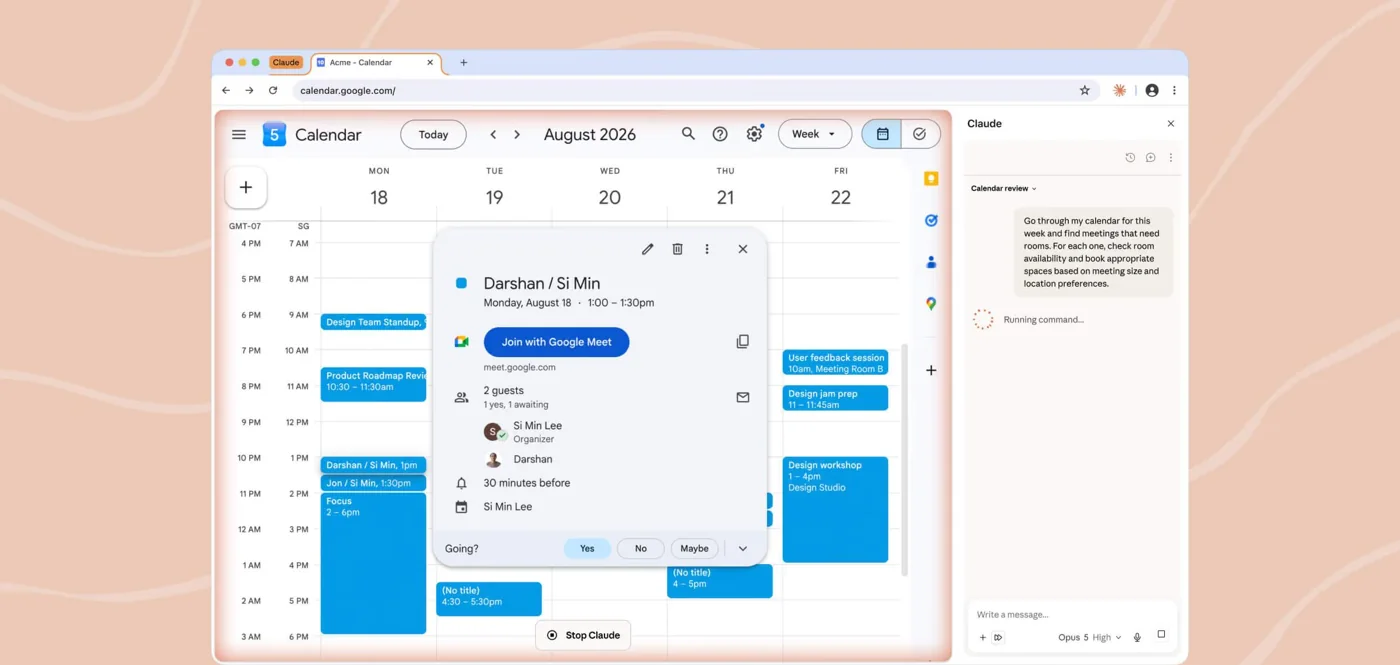
Use a separate browser profile. Use manual approval on sensitive sites.
Use a prepared training connection. Read only.
Find one sample document and summarize it.
Open the source and compare.
Say what Claude read and what it could change.
Treat instructions inside retrieved content as text, not as commands.
Run the task by hand first.
Use the Scheduled page or type /schedule.
Time, sources, output, and pause control.
Read the results after each run.
Scheduled tasks are on paid plans. Do not schedule tasks that send messages or make purchases.
Claude asks before each action.
Claude checks each action and asks when unsure.
Always allow, needs approval, or blocked.
You are responsible for actions Claude takes for you.
Use manual approval for new tools, sensitive accounts, and actions you cannot undo.
Claude can remember useful details. You can edit or reset them.
A chat that is not saved to history or memory.
Each Project keeps its own context.
Account-wide preferences in Settings.
Check what Claude remembers before you use it for client work.
Choose in Settings, Privacy, if chats can improve models.
Commercial terms apply. Chats are not used for training by default.
Deleted chats leave your history at once.
Passwords, ID numbers, and confidential client data.
Follow your organization's AI policy first.
Choose one question. Find the control that answers it.
Pick a question, such as “Can Claude see my email?”
Look in Settings, Customize, or the + menu.
Say what the control changes.
If a control is absent, record the access gap. Do not change settings just to follow along.
Bring one real question from your work.
Describe the task and the obstacle.
Find the day and technique that fits.
Write one action for next week.
Keep examples free of confidential detail.
Choose one task for next week. Start small. Review the result.
Complete the end self-check. Technical teams can continue with Claude Code.